Changelog
Code2Bricks Changelog
See what's new, what's fixed, and how we're making the Code2bricks better.
Tab to calc(), Reliable HTML Auto-Sync, Quick Import & Style-Panel Insert Fixes and Structure Deletions Bug Fixes
This release makes Code2Bricks more dependable where it matters most. Deleting an element in the Structure panel is saved again, and HTML you type in the HTML editor now reaches Bricks without a manual Sync. Quick Import and CSS Insert handle modern CSS properly :is() selectors, @property, calc() and clamp() values, and CSS sent to the Style panel all come through intact, with each rule stored on the element it styles. The CSS editor also gains Tab to calc(), and media query variables can now only be saved by administrators, with stricter checks on their values.
Tab Wraps a Calculation in calc()
In any Code2Bricks CSS editor, press Tab after a calculation to wrap it in calc(): padding: var(--space-m) / 2 becomes padding: calc(var(--space-m) / 2). Only the calculation at the end of the value is wrapped, so margin: 1rem var(--gap) * -1 becomes margin: 1rem calc(var(--gap) * -1), and a bare --variable inside it becomes var(--variable). Nothing is wrapped when the result would not be valid CSS — such as 1rem + 2, 2px * 3px, dividing by a length or by 0, or + and - without spaces — or where / is normal CSS, like aspect-ratio: 16 / 9, grid-column: 1 / -1 and font: 12px/1.5.
Quick Import Puts Each Rule on the Element It Styles
Imported CSS is now stored on the element each rule actually styles. A rule like .menu--open .menu__panel goes to .menu__panel, even though .menu--open is only added later by JavaScript. When an :is() list styles several imported elements, the rule is stored on each of them; lists that describe one element’s content, like .card__content :is(h2, h3), stay as one rule. CSS Insert routes rules the same way.
Quick Import Keeps Your Whole Script
JavaScript lifted out of pasted full-page HTML keeps every inline script whole, including code wrapped in an IIFE, and its shared indentation is removed so the first line lines up with the rest. JSON-LD and template script tags are no longer placed in the JavaScript editor.
Deleting an Element in the Structure Panel Is Saved Again
Deleting an element in the Structure panel now lights the save icon and is saved with the page. Previously, with Code2Bricks active, the deletion was in certain condition dropped from the list of unsaved changes as the selection moved, so saving did not include it and the element came back after a refresh. Other changes made at the same moment as a selection change, including Alt+scroll in the Structure panel, are kept as well.
HTML Editor Changes Reach Bricks Without a Manual Sync
HTML you type in the HTML editor now always syncs to Bricks on its own. Previously, some edits were treated as “no change” and skipped, for example changing a class from card-a to card-b further down the HTML, and only Ctrl+Shift+S pushed them through. Edits made right after another sync, edits you leave the editor with, and edits still pending when you select another element are now all sent, and saving the page syncs any pending HTML first so the save includes it.
Selectors With :is(), :not() and :has() Import Correctly
Quick Import, CSS Insert and Convert now keep selectors with commas inside :is(), :not(), :has() and :where() intact. Previously, a rule like .envelope--stowed :is(.envelope__back, .envelope__front) { display: none; } was cut at every comma, which left broken selectors in the CSS editor and could turn a hidden state into a plain rule that hid the element all the time.
Style-Panel Insert Keeps CSS Values Intact
Inserting CSS into the Style panel with Quick Import or CSS Insert no longer breaks values. Previously, padding: calc(var(--frame) + clamp(18px, 7cqi, 48px)) was split at every space into invalid sides, and aspect-ratio: 1 was shown and written back as 1px. Values with calc(), clamp(), min() and max() now stay whole, and values that cannot be split safely — such as border-radius: var(--radius) holding four radii, stay in the CSS editor. Moving CSS into the Style panel also no longer changes which rule wins, the CSS left in the editor keeps its order and comments, and CSS Insert no longer deletes an existing padding: 0 when it only updates one side.
Quick Import Keeps @property, @font-face and @import
@property, @font-face and @import rules are now kept on import. Previously they were dropped, which broke components that animate registered custom properties. A @media (prefers-reduced-motion) override of :root tokens now also stays after the base tokens, so it still takes effect.
Nested At-Rules and Braces Inside Strings
Rules inside @supports and then @media now keep both conditions. Previously the inner media query was lost, so the rule applied at every width. Braces and semicolons inside strings or comments no longer end a rule early, and Convert no longer treats a media query inside @supports, or a @container query, as a Bricks breakpoint.
Media Query Variables Are Saved by Administrators Only
Saving media query variables now requires an administrator, because a changed value updates CSS on every page, template and global class. Values must also be a plain media condition: braces, semicolons, comments and closing style tags are refused with a message. Previously, any user who could edit posts could save a value that was written into CSS across the whole site.
Pasted HTML No Longer Runs in the Builder
Quick Import now reads pasted HTML without loading it into the builder page. Previously, an image error handler inside pasted code could run in the builder while the code was being imported.
Style Panel ↔ CSS Convert, Structure Swipe & Scroller, Find & Replace & Code Folding
This release lets the CSS editor and the Style panel share one source of truth. A Convert button moves styles either way, Quick Import can insert CSS into the Style panel, and selector chips can lock, trash, and copy/paste styles. The Structure panel gets swipe-to-reveal names and Alt+scroll to walk the tree. Every editor now has Find & Replace and remembered code folding — new SVG blocks start folded. Canvas resize stays smooth on large pages, the BEM generator updates existing classes in place, and a few long-standing class and import issues are fixed.
CSS Editor Convert: Style Panel ↔ Authored CSS
The CSS action bar has a Convert button. It opens a popover with Convert UI to CSS and Convert CSS to UI. This is manual — it does not turn on Bricks 2.4 automatic CSS Sync.
The editor now shows Style-panel CSS (all breakpoints and simple states) in a read-only block above the CSS you write. Save, auto-save, and Format only change the CSS you authored. Copy copies everything you see.
Convert CSS to UI moves supported declarations into Style controls and leaves the rest in the editor. Convert UI to CSS writes those controls back as editable CSS and clears them from the Style panel so each property has one home.
Settings → General lets you hide the Convert button and the Style-panel CSS preview independently. If Bricks CSS Sync is on, both are turned off and locked so styles are not duplicated. Your own preferences come back when you turn CSS Sync off and reload the builder
Quick Import Can Insert CSS Into the Style Panel
Quick Import now has an Insert option beside CSS mode: CSS editor or Style panel. In Global classes mode, Style-panel insert converts supported CSS into Style-panel settings on that element or class. Unsupported CSS stays in the CSS editor. Element-level classes have no Style panel, so Insert stays on the CSS editor. The same lock applies when Bricks CSS Sync is on.
Selector Chips: Lock, Trash, and Copy/Paste Styles
Right-click a selector chip to lock or unlock it. Locked chips use the danger colour. The CSS editor, Convert, rename, clear, and paste are blocked — the same idea as Bricks locking a global class. Global class locks stay in sync with Bricks. Global classes can be moved to trash the way Bricks does it: first click says Sure?, second click within two seconds deletes. Locked classes cannot be trashed. Copy style and Paste style copy Style-panel settings plus authored CSS.
Structure Panel: Structure Scroller
In the Structure panel, hold Alt and scroll to move the active element up or down through the visible tree. It stops at the first and last row. Enter on a parent expands or collapses it. Settings → Structure has a toggle (on by default).
Structure Panel: Swipe to Reveal Names
Swipe sideways, Shift + scroll, or tilt the wheel in the Structure panel to widen rows so long nested names can be read without resizing the panel. Swiping back restores the original layout. Off by default in Settings → Structure.
Code Folding on Every Editor
Folding now works in HTML, CSS, and JS — and in Quick Import, CSS Insert, snippets, and recipes. Folds are remembered across element changes, reloads, and login. New <svg> blocks start folded. Fold markers are chevron icons. Shortcuts: Ctrl+Q toggles the fold at the cursor, Shift+Ctrl+[ / ] fold / unfold (⌘⌥[ / ] on Mac), Ctrl+Alt+[ / ] fold / unfold all.
Find & Replace in Every Code Editor
Ctrl+F (⌘F on Mac) opens an in-editor search bar instead of the browser’s page search. Ctrl+H opens Replace; Shift+Ctrl+H opens Replace All. Both support /regex/ syntax. Works in every Code2Bricks editor, including when the panel is detached.
Canvas Setting: Hide Element Action Buttons
Settings → Canvas has an Element actions toggle (on by default). Turning it off hides Bricks’ Add, Layout, Width, and Height buttons on the selected canvas element. The Code2Bricks dimension readout can stay if Element dimensions is on.
Canvas Resize Stays Smooth on Large Pages
Resizing the canvas with the Code2Bricks side handles is smooth, even on big pages. While you drag, only the visible part of the page re-lays out. Canvas animations, sliders, and Bricks overlays wait for the final width. The handles and the width readout stay on the canvas edge. When you release, everything updates once at the new width.
BEM Generator Updates Existing Classes in Place
Reopening the generator on a tree that already has BEM names pre-fills those names instead of inventing new ones. The button becomes Update Classes. Unchanged names are skipped. Renamed inputs update the existing class. Bricks components default to excluded, so component instances do not receive BEM classes unless you turn that off.
CSS Insert Skips Style-Panel CSS and Parks Keyframes
CSS Insert still writes to the CSS editor. It no longer rewrites declarations the Style panel already owns. @keyframes follow the first rule that uses the animation, so they are not copied onto every child. Unreferenced @font-face and @keyframes stay on the selector that was active when Insert opened.
CSS Hints Stay On When Variable Manager Is Off
Turning off CSS Variable Manager in Settings → Tools no longer hides the CSS editor hint box. That toggle only skips names registered in the Variable Manager. Bricks, AT, and CORE tokens, local variables, and property / value suggestions still appear. Previously, turning the manager off could hide the whole hint list, and clicking a hint often took several clicks. A single click now inserts the property, value, or variable.
Element-Level Class No Longer Leaves a Bricks Global Active
Adding or selecting an element-level class now clears the leftover global so Style-panel edits land on the root, not that global. Previously, Bricks could leave the first global class active, and Style-panel edits would write there by mistake. Returning to a remembered Root or element-level class does the same.
Quick Import Merges Existing Class CSS
Re-importing a snippet whose global or element classes already exist no longer appends a second copy of the CSS. Previously, the same class rules and keyframes were duplicated on every import. Unchanged declarations stay, changed values update, and new properties are added. HTML still creates a new structure on import.
Snippet Manager, Settings Revamp & Quick Insert, Media Query Variables, Property Shortcuts & Detachable Editors
This release is a big step forward for day-to-day authoring in Bricks. You get a full Snippet Manager for site-wide and per-page CSS/JS stored in Bricks itself, a redesigned Settings modal with per-tool toggles and a Quick Insert rail for one-click elements and Code2Bricks tools, Media Query Variables you insert with $, Emmet-style Property Shortcuts, and a detachable editor panel you can pop onto another monitor. CSS autocomplete also suggests classes and data attributes from across the element tree — ancestors and descendants alike — and local CSS variables defined on a parent now cascade into autocomplete for its whole child tree. Alongside that: smoother canvas resizing, cleaner HTML copy, better light-mode UI, and several important sync fixes.
Snippet Manager
A new Snippet Manager (toolbar button or Ctrl/Cmd+Shift+M) lets you manage site-wide and per-page custom CSS and JavaScript from inside the builder. The three-pane layout covers the snippet form, a full CodeMirror editor, and a folder/snippet tree with drag-and-drop reordering.
Snippets are written into Bricks’ own custom code settings — global CSS/JS and page CSS/JS — wrapped in tracked markers, so the code keeps working even if Code2Bricks is disabled or removed. A locked Defaults folder exposes Bricks’ existing Global CSS and Page CSS for direct editing. The snippet editor has the same CSS helpers as the main panel (property shortcuts, @ recipes, CSS variables, and media query variables), with live preview in the canvas. You can import/export, enable/disable, duplicate, rename, and delete snippets, and the manager warns you if a block was edited or removed outside Code2Bricks.
Settings Revamp & C2B Quick Insert
The Settings modal is now a large, sidebar-navigated window with five sections: General, Tools, C2B quick insert, AI capabilities, and Support. Auto-sync is always on (it is what makes coded blocks work), so the old toggle is gone. Each tool can be enabled or disabled individually — when a tool is off, its editor assistance and toolbar entry stay quiet.
The new Quick Insert bar docks to the far right of the editor panel. Click a Bricks element to insert it at the current selection (same placement rules as Bricks), or click a Code2Bricks tool to open it. Contents, order, and on/off state are managed under Settings → C2B quick insert, and the element library mirrors Bricks’ Elements panel — including third-party add-ons.
C2B CSS Insert
Right-click any element in the Bricks structure panel or canvas and choose **C2B: CSS Insert** to paste externally authored CSS onto that element’s existing subtree. Matching global classes, element classes, and IDs are updated in place (property-level merge), nested CSS and media queries are preserved, and unmatched rules fall back to the context element’s root CSS. The insert editor has the same helpers as the main CSS panel (recipes, property shortcuts, variables, media query aliases).
Media Query Variables
Create reusable media query aliases under Settings → Tools, then type $ in any Code2Bricks CSS editor to insert them as friendly authoring syntax like @ (--small-screen) { … }. On save, aliases expand to normal @media rules for Bricks and the frontend, tagged so changing a definition updates every place it is used — including across pages and global classes — without a full reload. A plain-English “What this means” field explains each query, and the output preview shows the expanded CSS.
Property Shortcuts
Type a short key in any Code2Bricks CSS editor and press Tab to expand it — for example pl → padding-left: ;. A dimmed ghost preview shows what Tab will insert, and matching shortcuts also appear at the top of the autocomplete list. Manage your own shortcuts (add, rename, enable/disable, import/export) from Settings → Tools → Property Shortcuts. Expansion only runs in true property position, so it does not clash with var(), calc(), or r → %root%.
Detachable Editor Panel
A detach button in the panel header opens the whole HTML/CSS/JS panel in its own browser window — move it to another monitor, resize it, or minimize it like any OS window. Narrow windows stack the editors; wide windows keep them side by side with resize gutters. Closing the window or clicking reattach docks the panel back into the builder. Autocomplete, context menus, and the Add Selectors dialog follow the detached window so they stay usable on the second screen.
CSS Class & Data-Attribute Hints
In the CSS editor, typing . suggests classes from the whole element tree around what you are editing — the current element, its ancestors (parent containers and sections), and its descendants, including nested components — filtered as you type. Typing [ suggests authored data-* attributes from that same tree — only attributes you added through Bricks / the Add Selector modal, not builder noise. Because it works in both directions, a child can complete a parent’s class or data attribute and a parent can complete a child’s. Both work inside nested CSS as well, not only at the top level.
Local CSS Variables in Autocomplete
CSS custom properties defined on an element — or on any parent above it — now show up in the CSS editor autocomplete for that element and its entire child tree, exactly the way they cascade in real CSS. Define --faq-bg: green on a section and every element inside it can complete --faq-bg, while elements outside that branch never see it. Typing -- merges local variables in with your global design tokens, and typing a leading _ shows only the local ones as a quick shortcut. Each local variable carries a LOCAL badge, and when its value resolves to a color it shows a swatch next to the name.
Details & Summary Elements
Writing or pasting <details> and <summary> in the HTML editor now creates real Bricks structure-panel elements, following the same wrapper and text rules as other tags. They round-trip correctly in the HTML editor and show readable labels in the structure panel when no id or class is set.
BEM Generator: Make Parent
Each child row in the BEM Class Generator has a Make Parent toggle. Promoting a child makes it the BEM block for its own branch (for example feature-card__media instead of feature-section__media). Reset parent rejoins the nearest ancestor block. Renaming the root block no longer overwrites promoted subtrees.
Clean, Frontend-Ready HTML Copy
The HTML Copy button copies clean, frontend-ready rendered markup from the canvas — including complex Bricks and add-on output such as forms, videos, and charts. Builder-only noise is stripped, output is prettified, and user classes are preserved. Auto brxe-… ids are only kept when the element actually has CSS on that id. The “Copy HTML for this element” action copies only that element’s own markup, without nested Bricks children.
CSS Variable Hints & Style Manager Tokens
Variable hints that resolve to a color show a round swatch next to the name. Autocomplete now sources the real, user-named Style Manager variables (including generated light/dark/transparent shades), while meaningless internal --bricks-color-{hash} tokens stay out of the list.
HTML Sync Shortcut
Sync HTML to Bricks now has a dedicated shortcut: Ctrl+Shift+S (⌘⇧S on Mac). It no longer collides with Bricks’ own save shortcut, and it works from the HTML editor even when the panel is detached.
Light Mode & Editor Theming
Code2Bricks UI and the panel editors follow Bricks light and dark mode more consistently — readable controls in light mode, and HTML/CSS/JS editors that inherit Bricks’ CodeMirror theme instead of staying stuck on dark colors. Scrollbars across the panel and modals share one thin, accent-colored style.
Renaming a Class No Longer Rewrites Unrelated CSS
Renaming an element class or global class no longer rewrites unrelated CSS in the live canvas. Previously, a rename could change selectors inside Snippet Manager CSS, page custom CSS, and other rules in the preview only — so a snippet like .trust { background: purple } could keep applying after the class on the element became .test, until a full refresh. External rules now keep their original selectors and correctly stop matching when the class name on the element changes.
Silent Element Deletion on Duplicate
Duplicating (or otherwise changing structure in Bricks) no longer silently deletes nested children — especially SVG and text grandchildren — with no undo. Previously, stale HTML in the editor could be treated as the source of truth and remove elements that still existed in Bricks. Sync now only deletes elements that were part of the editor’s last known tree; anything that appeared in Bricks while the editor was out of date is left alone and refreshed instead.
SVG Sync Fixes: Rendering and Nested Element Preservation
A focused patch resolving two SVG sync issues introduced in recent releases. SVGs added or pasted in the HTML editor now correctly appear in both the structure panel and the canvas, and nested SVGs inside other elements, like icons inside buttons or cards, are no longer silently stripped during a sync cycle.
SVG Elements Now Sync From the HTML Editor
SVG elements added or pasted in the HTML editor now correctly appear in both the Bricks structure panel and the canvas. Previously, new SVGs were created in the data but never rendered, the canvas stayed unchanged. This affected all SVG insertions through the HTML editor, including pasting SVG code inside existing containers.
Nested SVGs No Longer Deleted During Sync
SVG elements nested inside other elements, such as icons inside buttons or cards, are no longer silently removed when the HTML editor syncs. Previously, a sync cycle could strip SVGs from the element tree, causing them to disappear from the structure panel and canvas.
CSS Variable Manager, Settings Tools Section, SVG Sync Fixes & Data Attribute Persistence
This release adds a CSS Variable Manager so variables defined outside Bricks, in WPCodebox, theme code, or conditional selectors, show up in autocomplete just like any other variable. A new Tools section in the Settings modal gives you quick access to the Variable Manager, Recipes, and Quick Import from one place. Mixed content in buttons and links (SVGs alongside text) now imports correctly without losing content, and a round of SVG sync fixes resolves several long-standing issues with class handling, canvas updates, and false error toasts. Data attribute changes now also persist correctly on save across all template types.
CSS Variable Manager
Register CSS variable names defined outside Bricks — such as variables in WPCodebox, theme code, or conditional selectors like [data-brx-theme] — so they appear in the CSS editor autocomplete. Only the variable keys are stored, not values, since their values may change at runtime. Two input modes are available: List View for browsing, searching, adding, renaming, and deleting variables one by one; and Code Editor for bulk-pasting CSS blocks and extracting all --variable-name declarations automatically. Variables are saved per-site and appear immediately in suggestions after save without a page refresh, with a C2B badge in the hint dropdown alongside the existing AT, CORE, and ACSS badges.
Settings Modal Tools Section
The Settings modal now has a dedicated Tools section with quick-open buttons for the CSS Variable Manager, CSS Recipes, and Quick Import. The settings modal closes smoothly before the target tool opens, so you never end up with stacked overlays.
Mixed Content Preservation for Buttons & Links
Elements like <button><svg>...</svg> Click me</button> and <a><svg>...</svg> Read more</a> now preserve both the SVG and text content when imported or pasted. Previously, these became structural wrappers that silently dropped adjacent text nodes. They are now correctly treated as text elements with the original tag preserved and full inner HTML kept intact — including inline SVGs, images, and text.
Selector Modal Overflow Fix
Clicking a global class suggestion that visually overflows the modal boundary no longer causes the modal to close unexpectedly. The overlay dismiss now only triggers when you directly click the backdrop, not when a click bubbles up after a child element is removed.
SVG Sync and Class Handling
Resolved multiple issues with SVG elements in the HTML editor. SVG code pasted or typed in the editor now syncs correctly to Bricks. SVG elements display their CSS classes and custom attributes in the editor. New SVGs without a tracking reference are created as proper Bricks elements instead of being silently skipped. Classes are always managed through Bricks settings and never embedded in the SVG code string. Adding classes to SVGs no longer triggers a false “Sync error” toast. SVG code changes now clear the Bricks signature so the code is re-signed on save, and SVG elements receive class and attribute updates in the canvas preview during sync.
Data Attribute Changes Now Persist on Save
Data attribute changes made via the HTML editor now correctly persist when saving, including on header and footer templates. Previously, changes appeared in the builder but reverted on save because the sync engine was suppressing Bricks’ native mechanism for tracking unsaved changes. The sync engine now lets Bricks’ own change tracking handle dirty state, exactly as it does when editing through Bricks’ own attribute inputs.
Cleaner CSS Autocomplete, Recipe Trigger Refinement & Selector Fixes
A refinement release focused on cleaning up the CSS editing experience. Short Tab expansions that cluttered autocomplete have been trimmed down to only the most essential ones, and recipes are now exclusively triggered with the @ symbol so they never interrupt normal CSS typing. The selector bar no longer flickers or jumps when switching elements, the Add Selector modal now accepts any valid HTML attribute, and the autocomplete dropdown styling is now consistent regardless of third-party plugins.
Cleaner CSS Quick-Add System
The Tab expansion shortcuts have been cleaned up, only the most essential ones remain: r → %root%, v → var(), c → calc(), and imp → !important. Everything else is now accessible as a recipe via the @ trigger, keeping autocomplete clean while still having all the power one keystroke away.
Recipes Only Appear With @ Trigger
Recipes no longer pop up while typing normal CSS properties. They now exclusively appear when you type @, keeping autocomplete clean and predictable. Typing @ alone shows all available recipes; typing something like @hover narrows the list.
Selector Bar No Longer Jumps Between Classes
The selector bar now remembers your last active class per element and restores it instantly when switching between elements, with no visual flickering. Element classes no longer interfere with Bricks’ own class panel state.
Add Selector Modal Accepts All HTML Attributes
The Add Selector modal now accepts any valid HTML attribute — aria-label, role, tabindex, and so on — not just data-* attributes. Previously, non-data attributes would return “No valid selectors found.”
CSS Hint Dropdown Styling
The autocomplete dropdown now consistently uses Code2Bricks styling with a minimum width, so items are never clipped or overridden by third-party plugin styles.
Bug Fixes: HTML Attribute Handling, Block Elements, CSS Formatter & Quick Import
A focused patch release resolving four specific issues introduced and uncovered in 1.5.0. HTML attributes containing the letters “on” (like aria-controls or action) no longer get corrupted during sync, block elements are now correctly preserved in the HTML editor, the CSS formatter no longer breaks pseudo-class selectors, and Quick Import now correctly splits
HTML Attributes Containing "on" No Longer Corrupted
Attributes like aria-controls, action, or data-icon that happen to contain the letters “on” in their name are no longer broken during HTML sync. Previously, writing <button aria-controls="menu"> could produce malformed output. This is now handled correctly for all standard and custom attribute names.
Block Elements Preserved in HTML Editor
Writing <div data-bricks="block"> in the HTML editor now correctly creates a Bricks Block element, just as <div data-bricks="container"> creates a Container. Previously, block divs were treated as generic divs and the distinction was lost on sync.
CSS Formatter No Longer Breaks Pseudo-class Selectors
The Format button no longer inserts a space after the colon in pseudo-class selectors. li:first-child, a:hover, and :nth-child(1) now stay intact after formatting, while property declarations like color: red are still formatted correctly as expected.
Quick Import Splits Style and Script Tags From Any HTML
Pasting HTML that contains inline styles or script tags into Quick Import now correctly extracts the CSS into the CSS editor and the JavaScript into the JS editor, even when the pasted content is a partial snippet rather than a full HTML page.
Bricks 2.3 Compatibility, CSS Recipes, CSS Format Button & Smarter Autocomplete
This release brings full Bricks 2.3 compatibility, including support for instant navigation and nested component UIDs, with automatic version detection that adjusts behavior accordingly. The entire plugin architecture has been rewritten for stability and performance — the sync engine, Bricks bridge, and app layer are now structured into focused modules with Vue-reactivity-safe state management, resulting in faster element selection and smoother editing on large pages. On top of that, CSS Recipes introduce reusable code blocks you can insert anywhere with a single keystroke, a new Format button cleans up your CSS instantly, and autocomplete is now smarter than ever — with source badges, logical property support, and fuzzy recipe search. Several long-standing sync and persistence bugs have also been squashed, including stale editor content, silent save failures, BEM generator CSS loss, and missing Advanced Themer color variables.
Bricks 2.3 Compatibility
Code2Bricks is now fully compatible with Bricks Builder 2.3. Instant navigation (switching pages inside the builder) and nested component UIDs are both fully supported. Version detection automatically adjusts plugin behavior based on the installed Bricks version, so no manual configuration is needed. The entire plugin architecture has been rewritten for stability and performance — the sync engine, Bricks bridge, and app layer have been restructured into focused, single-responsibility modules with Vue-reactivity-safe state management. This means faster element selection, smoother editing on large pages with complex element trees (including SVGs), and a more reliable foundation that prevents regressions as new features are added.
CSS Recipes
Reusable CSS code blocks you can insert into any CSS editor with a single keystroke. Type @ followed by a recipe name (e.g. @clickable-card) to see matching recipes appear in the autocomplete dropdown, then select one to insert the full code block at your cursor. Three useful recipes ship out of the box: button-padding, remove-default-bricks-space, and clickable-card. Open the Recipe Manager from the new toolbar button (located after Quick Import) to create your own recipes, rename, delete, or toggle them on and off. Recipes you disable won’t appear in autocomplete. You can also import and export your custom recipes as JSON to share them across projects or with your team.
CSS Format Button
A new Format button in the CSS editor action bar cleans up and pretty-prints your CSS on demand. It normalizes spacing, aligns declarations, and applies proper indentation using CodeMirror’s built-in CSS formatting engine. Your cursor position and scroll offset are both preserved after formatting, so you can format mid-edit without losing your place.
Documentation Site
Public documentation is now available at docs.code2bricks.com, covering installation, features, workflows, and reference guides.
Smarter CSS Autocomplete
CSS variable suggestions now display source badges — AT, CORE, and ACSS — so you can tell at a glance where each variable comes from. Variables from Advanced Themer color palettes, Automatic.css, and Core Framework are all included automatically. Modern CSS logical properties (inline-size, block-size, margin-inline, padding-block, etc.) and newer properties like aspect-ratio, container, scroll-snap-type, and text-wrap are now suggested and auto-expanded with Enter. Recipe and snippet search is now fuzzy — typing @hide will find a recipe named visual-hide.
Add Selector Modal
The radio options have been reordered to Class → ID → Data Attribute for a more natural flow. A global class search dropdown now lets you find and select existing Bricks global classes by typing a prefix, with full keyboard navigation and category badges. Data attribute names now autocomplete with common HTML and ARIA suggestions, and typing = after any attribute name automatically inserts quotes — not just on data-* attributes. The modal is also blocked from opening on uneditable component children to prevent confusion.
Consistent Code Editors
All CSS editors across Code2Bricks — the main CSS editor, the Recipe modal editor, and the Quick Import CSS editor — now share identical functionality. Every editor gets the same Tab expansions (r → %root%, bg → background, etc.), CSS variable hints with source badges, property autocomplete, recipe suggestions, and comment toggle. The Quick Import HTML editor also gains auto-closing tags and tag matching. Autocomplete styling is now consistent across all editors regardless of which third-party plugins are active.
CSS Editor and Bricks Panel Stay in Sync
The CSS editor no longer shows stale content from the previously selected element when you click a different element on the canvas. Selecting an element on the canvas or in the structure panel both correctly update the editor. When you select an element, the CSS editor now defaults to the first class instead of the element root — reducing clicks for the most common workflow. The Code2Bricks selector bar and Bricks’ active class panel now stay perfectly in sync: switching classes, removing classes, and auto-fallback after removal all work correctly in both directions. Previously, Code2Bricks could interfere with Bricks’ native class selection, making it impossible to choose a different active class in the Bricks visual panel, this is now fully resolved.
CSS Saves More Reliably
Resolved several issues where CSS edits could silently fail to persist. Edits on non-desktop breakpoints no longer write to the wrong key. Global class CSS saves that were silently skipped due to reference comparison now work correctly. Throttled saves are retried instead of dropped. When switching elements quickly, unsaved CSS is now flushed before the next element loads, and a post-save verification step confirms the edits stuck.
BEM Generator CSS Persistence
Global classes created by the BEM generator now correctly save their CSS. Previously, a data format mismatch caused CSS to be silently lost on serialization, and an early-return in the save path meant edits only persisted on a full page save, both issues are now resolved.
Advanced Themer Color Variables
Color variables created via Advanced Themer’s color palettes now appear correctly in CSS autocomplete suggestions. Previously, variables injected via inline styles on :root were not detected, and some palette-derived variables were filtered out incorrectly. Both sources are now scanned
Container Query Support, Settings Modal, CSS Snippet Autocomplete & Universal Framework Support
This release introduces a centralized Settings Modal that consolidates all Code2Bricks preferences in one accessible location, plus powerful CSS Snippet Autocomplete that speeds up writing common patterns like pseudo-selectors and media queries. CSS variable autocomplete now scans all active stylesheets automatically, surfacing variables from Automatic CSS, Core Framework, Advanced Themer, and any other framework without manual configuration. We’ve also added comprehensive container query support with intelligent snippets and optional dimension overlays, improved HTML sync reliability across numerous edge cases, and refined the CSS editor workflow to default to your first class for faster access saving you lots of click which adds up overtime.
Container Query Support
Container queries are now significantly easier to write and use. Type container, has, or parent to get a snippet that makes the parent element a query container. Type container + TAB for a dynamic @container query that uses the selected element’s current width as the breakpoint value. The CSS editor recognizes container-specific properties like container-type, container-name, and container in autocomplete. An optional element dimension overlay, which you can enable in Settings under Canvas options, displays width and height measurements directly on the canvas for quick reference while writing container queries.
Settings Modal
A new settings window is now available via the gear icon in the panel header, consolidating all Code2Bricks preferences in one accessible location. Control Auto-sync behavior, toggle editor visibility for HTML, CSS, and JS panels, and manage canvas options like element dimension overlays. The Auto Sync toggle has been moved here from the panel header, creating a cleaner main interface while keeping all configuration options logically grouped and easy to find.
CSS Snippet Autocomplete
The CSS editor now suggests helpful snippets as you type, accelerating common styling patterns. Type keywords like hover, focus, before, after, media, or container to see relevant code suggestions that insert complete, ready-to-customize blocks. New snippets for relative color syntax let you type from to instantly insert oklch(from var(--foo) L C H / 1) or hsl(from var(--foo) H S L / 1), making it effortless to derive color variations from your existing CSS variables.
CSS Variables Support For All Frameworks
CSS variable autocomplete now scans all stylesheets active in the builder, including Automatic CSS, Core Framework, Advanced Themer, and any other framework that outputs :root variables. You no longer need framework-specific setup or configuration. Variables from any active stylesheet appear automatically in suggestions, giving you instant access to your entire design system regardless of which tools generate it.
CSS Editor Defaults and Sync
When you select an element, the CSS editor now defaults to showing the first class instead of the element root. This reduces unnecessary clicks for the most common workflow where you want to edit class styles immediately. When you return to an element with a previously selected global class, the Bricks panel now correctly shows that same class as active, keeping both panels synchronized and eliminating confusion about which selector you’re currently editing.
Structure Panel Labels
Elements created via the HTML editor or Quick Import that don’t have an ID or class now display readable tag names in the structure panel. You’ll see meaningful labels like “table”, “Heading 1”, “Link”, or “nav” instead of generic Bricks element names like “Div” or “Block”. This makes it much easier to identify and navigate to specific elements in complex page structures without needing to add classes just for identification purposes.
HTML Sync Reliability
Several sync issues have been resolved to make HTML editing more predictable and reliable. Elements added or modified in Bricks are no longer incorrectly morphed when Code2Bricks syncs. Morphing now only happens when your edit genuinely changes the element type. Code elements containing raw PHP or HTML now sync correctly without their content being misinterpreted as markup. Block elements stay as blocks instead of being converted to divs. Image alt text with spaces or special characters now syncs properly, and removing the alt attribute correctly clears it in Bricks. Attribute values containing quotes, ampersands, or angle brackets are now properly escaped to keep your HTML valid and prevent parsing errors.
SVG Handling
SVG elements inserted via Bricks, whether from file upload, dynamic data, or icon-set source, no longer have their source type overwritten to “code” during sync. This preserves the original SVG configuration and prevents unexpected behavior. SVG attributes like xmlns, viewBox, fill, and stroke are no longer duplicated. They stay correctly stored in the SVG code without creating redundant attribute entries that could cause rendering issues.
Class Renaming in HTML Editor
Renaming a class in the HTML editor now correctly preserves whether it was a global class or element-level class. When you rename a global class, the rename updates the existing class everywhere it’s used across your site instead of creating a new class and leaving the old one orphaned.
Core Framework Compatibility, Zoom-Aware Resizing & Enhanced Security
This release resolves critical compatibility issues with Core Framework, ensuring both plugins work seamlessly side by side without interfering with each other’s drag behaviors or UI elements. Canvas resizing now works accurately on zoomed-out previews and intelligently disables on non-desktop breakpoints to prevent conflicts with Bricks’ responsive behavior. We’ve also added automatic UI hiding in preview mode, introduced gutter-based panel resizing for a more intuitive editing experience, and implemented encrypted storage for license data to enhance security.
Code2Bricks UI Hides Automatically in Preview Mode
When you click the Preview button in the Bricks toolbar, all Code2Bricks panels and resize handles are now hidden automatically. The extra padding reserved for the editor panel is also removed so you see a clean full preview. Exiting preview brings everything back, letting you seamlessly switch between editing and preview modes.
Editor Panel Resizing Now Uses Gutters
The HTML, CSS, and JavaScript editor panels now resize using visible drag gutters between them. Dragging a gutter redistributes space between its two neighboring panels. When you hide an editor, the remaining panels automatically fill the available width with no empty gaps. Your panel sizes are remembered between sessions for a consistent workspace layout.
License Data Now Encrypted in the Database
Your license key and activation data are now encrypted before being stored in the WordPress database. Previously, this data was saved as plain text. If you are upgrading from a previous version, your existing license is automatically migrated to the encrypted format with no action needed on your part, providing enhanced protection for your sensitive licensing information.
Canvas Resize Handles Now Work With Core Framework Active
The responsive preview resize handles no longer stop working when the Core Framework plugin is active. Previously, Core Framework’s drag behavior would intercept mouse events and prevent the resize handles from responding. Both plugins now work side by side without interfering with each other’s functionality.
Canvas Resizing Works Correctly on Zoomed-Out Previews
When you set a preview width larger than your screen (for example 1440px), Bricks scales the canvas down to fit. The resize handles now account for this scaling, so dragging them changes the canvas width accurately regardless of zoom level. The handles also stay correctly positioned at the edges of the canvas at all times, eliminating the misalignment that occurred on scaled-down views.
Resize Handles Disabled on Non-Desktop Breakpoints
The canvas resize handles are now automatically disabled when you switch to tablet, mobile landscape, or mobile portrait breakpoints. This prevents conflicts with Bricks’ own responsive behavior on those breakpoints. The handles show a visual indicator (changed cursor and reduced opacity) so you can tell they are inactive. Switching back to desktop re-enables them immediately.
Block Elements No Longer Convert to Div During HTML Sync
Editing HTML in Code2Bricks no longer silently changes Bricks “block” elements into “div” elements. Both element types produce identical HTML output, so the sync engine previously treated them as different and would swap one for the other. Element types now stay exactly as you set them in Bricks unless you make a change that genuinely requires a different element type.
Core Framework BEM Button No Longer Overlaps in Structure Panel
If you use Core Framework alongside Code2Bricks, both BEM class generator buttons in the structure panel are now visible and accessible. Previously, Core Framework’s button would overlap on top of the Code2Bricks button, making both difficult to use. The buttons now coexist without visual conflicts.
Build Faster with Code Where You Need It.
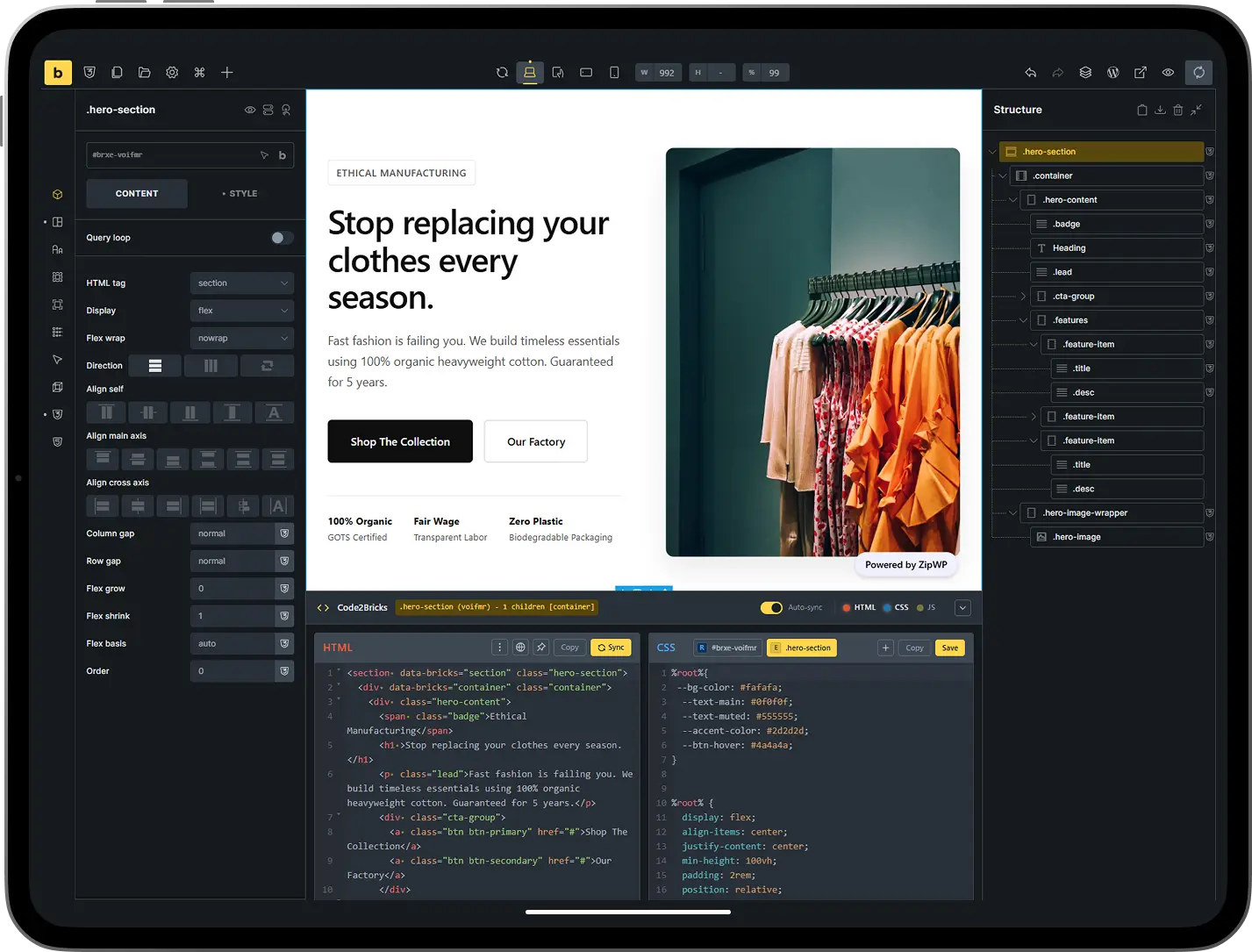
Code2Bricks integrates HTML, CSS, and JavaScript editors directly into Bricks Builder. Work visually when it makes sense, drop into code when it's faster. One workflow, zero context switching.