Features
The Fastest Way to Build in Bricks
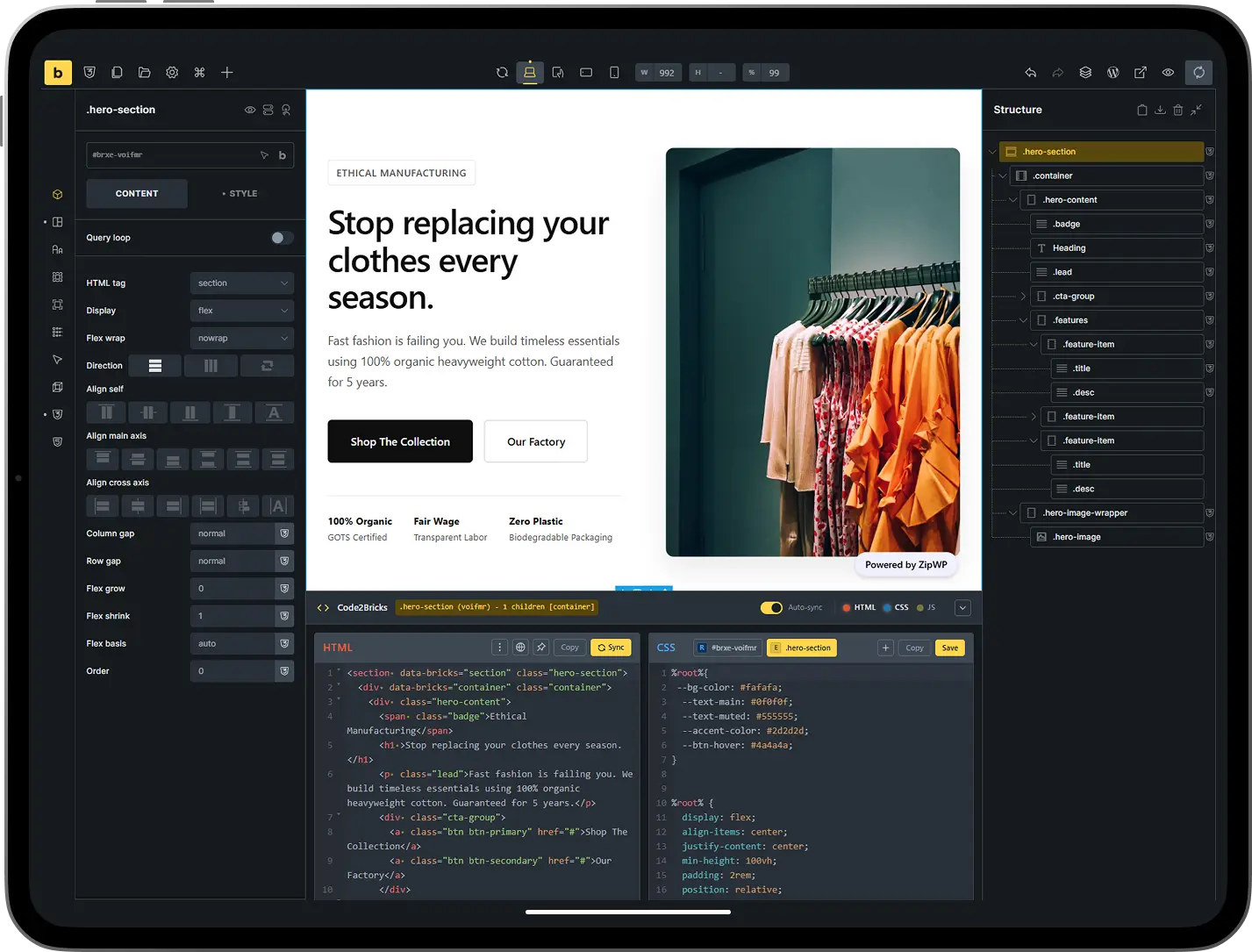
Optimize your workflow with features designed for speed. Code2Bricks replaces manual clicking with a bidirectional code editor that instantly renders your code directly on the builder canvas.
Bidirectional HTML Editor
Write standard HTML code that instantly converts into native Bricks elements like Sections, Containers, and Headings. Any structural change made in the visual builder updates your code in real-time, keeping both views perfectly synchronized.
Native JavaScript Storage
Manage scripts efficiently by writing code that is automatically saved into standard Bricks Code elements. This architecture ensures your JavaScript executes reliably on the frontend and remains fully accessible even if the plugin is eventually deactivated.
Quick Import
Paste a full HTML, CSS, and JavaScript snippet in one action and convert it directly into native Bricks elements. Quick Import auto-splits code into the right editors, maps styles to the correct elements, and inserts content based on your current selection. Ideal for migrating designs from other tools or reusing components.
Intelligent CSS Editor
Write CSS faster with an editor built specifically for Bricks. From a single, unified panel, you can target element IDs, element classes, or global classes with ease. The editor includes powerful productivity shortcuts such as a Root Selector that lets you type
r+Tabto instantly insert%root%, variable autocomplete where typing--var+Tabexpands tovar(--var), and smart property suggestions that allow you to typeback, selectbackground, and have the editor automatically insert the colon and semicolon so you can immediately add your value.CSS Snippet Autocomplete
Type keywords to see relevant suggestions as you write. Type
hover,focus,before, orafterfor pseudo-selector snippets. Typemediaorcontainerfor query snippets. Typefromfor relative color syntax —oklch(from var(--foo) L C H / 1)orhsl(from var(--foo) H S L / 1)— to derive colors from variables. All snippets output valid, Bricks-compatible CSS.CSS Variables From All Frameworks
Variable autocomplete scans every stylesheet in the builder — not just Bricks Settings. Variables from Automatic CSS, Core Framework, Advanced Themer, and any
:rootoutput appear in suggestions. No configuration required. Works with any framework that outputs CSS custom properties.Container Query Support
Use container queries without memorizing syntax. Type
container,has, orparentfor a snippet that makes the parent a container. Typecontainer+Tabfor a dynamic@containerquery based on the selected element's live width. The editor recognizescontainer-type,container-name, andcontainerin autocomplete. An optional element dimension overlay shows width and height on the canvas for quick reference.Smart Media Query Insertion
Type
media+Tabin the CSS editor to insert a media query using the current preview width. If your preview is at 900px, you get@media (width <= 900px) { }instantly. No manual breakpoint lookup.Zero-Latency Workflow
Work without interruption using a reactivity engine that eliminates manual save or sync buttons. The system processes changes as you type, ensuring the visual canvas and code editor remain in lockstep without slowing down the browser. Toggle Auto-sync on or off in Settings when you prefer manual control.
Editor Panel Resizing
Resize the HTML, CSS, and JavaScript panels using visible drag gutters between them. Drag a gutter to redistribute space. When you hide an editor, the remaining panels fill the width with no gaps. Your panel sizes are remembered between sessions.
Keyboard Shortcuts
Common actions are available via keyboard at all times. Use
Ctrl+S/Cmd+Sto save changes directly through Bricks without triggering the browser save dialog. Open the selector modal withCtrl+Shift+Enter/Cmd+Shift+Enter. Toggle CSS comments withCtrl+//Cmd+/. User+Tabto insert%root%,media+Tabto insert a media query at the current preview width,container+Tabto insert a container query at the element's width, and--variable+Tabto expand tovar(--variable).Structure Panel Labels
See meaningful names in the structure panel instead of generic "Div." Elements display their ID, first class, or a readable tag name — "table," "Heading 1," "Link," "nav" — so you can identify elements at a glance. Elements created via the HTML editor or Quick Import without an ID or class show tag-based labels automatically.
Unified Selector Modal
Add classes, IDs, and data attributes from a single input field. Type
.my-class another-class #my-id data-theme="light"and the modal intelligently parses each selector type. Choose Element Class or Global Class placement for classes; IDs and data attributes apply directly to the element. Open instantly withCtrl+Shift+Enteron Windows orCmd+Shift+Enteron Mac from the structure panel or canvas.BEM Class Generator
Generate clean, scalable class structures instantly. Hover over any element in the structure panel to launch the generator, which creates BEM-compliant classes for entire element trees in seconds. Choose to create Global or Element-level classes, exclude specific elements or entire branches, and edit names inline before applying.
Advanced Context Menus
Right-click any class or element for precision control. Rename classes safely without breaking links, copy full CSS rules to move styles between elements, or instantly copy the selector string to use elsewhere. Copy the CSS of all child elements in a single click to migrate styles rapidly.
Responsive Preview Resizer
Resize the Bricks builder iframe horizontally using drag handles on the left and right sides. The current preview width displays in real-time. Handles automatically disable on tablet and mobile breakpoints to avoid conflicts with Bricks' responsive behavior. Works correctly even when the canvas is zoomed out to fit a large preview.
Framework Compatibility
Integrate seamlessly with utility frameworks like ACSS or Core Framework. Type class names directly into the HTML editor, and Bricks will immediately recognize and render the associated styles. CSS variable autocomplete scans all active stylesheets — including Automatic CSS, Core Framework, Advanced Themer, and any framework that outputs
:rootvariables, so you never need framework-specific setup.Persistent Storage
All your changes live in Bricks' native data structure. No custom tables. No orphaned data. It's clean, lightweight, and ensures your data is never lost if the plugin is deactivated.
FAQ
Questions? We've Got Answers.
If I deactivate the plugin, does my site break?
Deactivating the plugin will not break your site or remove any content. Code2Bricks acts as a bridge that converts your code directly into native Bricks elements, CSS settings, and code blocks. All data is stored in Bricks’ standard database fields, meaning your site remains fully functional and editable through the default Bricks interface even if the plugin is removed.
Does this slow down my frontend?
Zero bloat. Code2Bricks runs entirely inside the builder. We don’t add a single line of CSS or JS to your frontend. We generate native Bricks elements, so your site loads exactly as if you built it manually, just much, much faster.
Is there a steep learning curve?
This tool is designed to be intuitive for experienced developers while serving as a powerful learning aid for those new to coding. Due to the plugin’s bidirectional synchronization, you can build visually in Bricks and immediately watch the corresponding HTML and CSS generate in the editor. This instant feedback loop helps users understand the relationship between code and visual design much faster than traditional development methods.
Does it support CSS frameworks like ACSS, AT or Core Framework?
The plugin integrates seamlessly with any CSS framework compatible with Bricks. Because the HTML editor generates native elements, you can type utility classes directly into your code, and Bricks will render the associated styles immediately on the canvas. This provides a highly efficient way to utilize utility frameworks without constantly switching between input fields.
What is included in the lifetime license?
A lifetime license grants you permanent access to the plugin with a one-time payment and no recurring fees. This includes all future plugin updates, security patches and new features.
Can I upgrade my license tier later?
You can upgrade your license at any time by simply reaching out to our support through support@code2bricks.com. We will provide you with a personalized checkout link so you only pay the difference between your current plan and the new tier. This allows you to start with a Personal license to evaluate the workflow and easily scale up to an Agency or Unlimited plan as your business needs grow.
Does the CSS editor sync with Bricks’ styling panel?
Yes, but as a manual converter, not a live bidirectional sync. Since version 1.7.0, the CSS editor has a Convert button. Click it to move supported CSS into the Style panel, or to move Style panel settings back into CSS, with nothing duplicated. It isn’t automatic two-way sync because the Style panel can’t represent everything CSS can, like complex selectors, container queries and relative colour syntax. A live sync would have to guess what to keep on every edit, and that’s where it breaks. Bricks’ experimental CSS Sync shows this: CSS gets duplicated, some media queries don’t sync, and some styles are missed. With the converter, you decide when styles move. Anything the Style panel can’t handle stays safely in your CSS.
Isn’t this just moving the existing Bricks code element to a more convenient place?
No. Bricks has no full-page HTML editor and no bidirectional sync between HTML and Bricks structure. That doesn’t exist natively. The Code element is a single raw HTML block. Code2Bricks lets you edit the full page structure as HTML, add a <section> or <h2> and it becomes a real Bricks Section or Heading. Reorder elements in HTML and the structure updates. It’s a different workflow.
Isn’t this just another way to add code? There are many way to add code to bricks.
Bricks has the code element, element’s CSS, custom code, etc…but they’re all separate. Code2Bricks gives you one place to edit the full HTML structure, one place to edit all CSS for an element (root + element classes + global classes), and Quick Import to turn pasted code into native Bricks elements. It’s a unified code-first workflow, not another scattered entry point.
Build Faster with Code Where You Need It.
Code2Bricks integrates HTML, CSS, and JavaScript editors directly into Bricks Builder. Work visually when it makes sense, drop into code when it's faster. One workflow, zero context switching.